How To Shrink And Fit To Pages When Printing In Outlook?
In Excel, you do Fit all columns/rows on One Page. Ever thought how do you shrink email message content to fit to printing pagers.
Here's a trick to shrink overflowing message content and fit to pages when printing in Microsoft Outlook.
To shrink message content and make it fit to page when printing, in Microsoft Outlook below are the steps:
1. Open the email message that you want to print by double-clicking it.
2. Click Actions (or Other Actions in Outlook 2007) and select View in Browser.
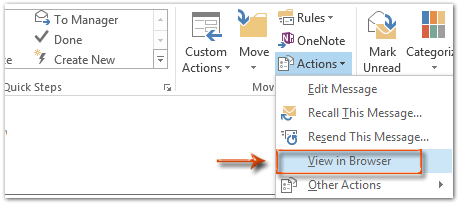
NOTE: If the email message is plain text or rich text, you need to convert it to the HTML format before carrying out this Step.
You can convert an email message to the HTML format:
A. In Outlook 2010 or later versions, click the Message > Actions > Edit Message, then click the Format Text > HTML;
B. In Outlook 2007, click the Message > Other Actions > Edit Message, and then click the Options > HTML.
It’s optional to save the changes and then close the message.
3. Then a warning dialog shows up. Click OK.

4. Then the content of this email message displays in a Browser. In my case, its the Internet Explorer. Click File > Print Preview.

5. Then select Shrink To Fit in the Print Preview dialog box. You can also select a percentage from the drop down list to adjust as per your requirement.
6. Click the Print button  at the top to print this email message.
CHEERS!!!!!!

Comments
Post a Comment